

Documentation
ClickFunnels 2.0
Connect ClickFunnels 2.0 so its contacts and sales count toward your A/B tests. ClickFunnels sends each event to a Splitlab webhook the moment it happens, and Splitlab credits the money to the test variant the buyer saw.
Everything is scoped to a workspace
The webhook belongs to the Splitlab workspace that created it. Revenue it receives counts in that workspace only. No campaign needs to be picked: Splitlab finds the variant from the visitor.
Before you start
- The Splitlab snippet installed on the funnel.
- The hidden
mvt_visitor_idfield on the funnel's forms: ClickFunnels 2.0 forms. Without it, sales still arrive but show as Unattributed. - The Splitlab role that can manage integrations in the workspace.
1. Start the connect wizard in Splitlab
- In Splitlab, select the workspace, then open Integrations → ClickFunnels 2.0 and click Create. The Connect ClickFunnels 2.0 wizard opens.
- Name: give the connection a name you will recognise, such as the ClickFunnels workspace it belongs to.
- Webhook URL: click Create webhook URL, then copy the URL it shows.
Keep the wizard open: you come back to it for the events, the secret and the token.
2. Add the endpoint in ClickFunnels
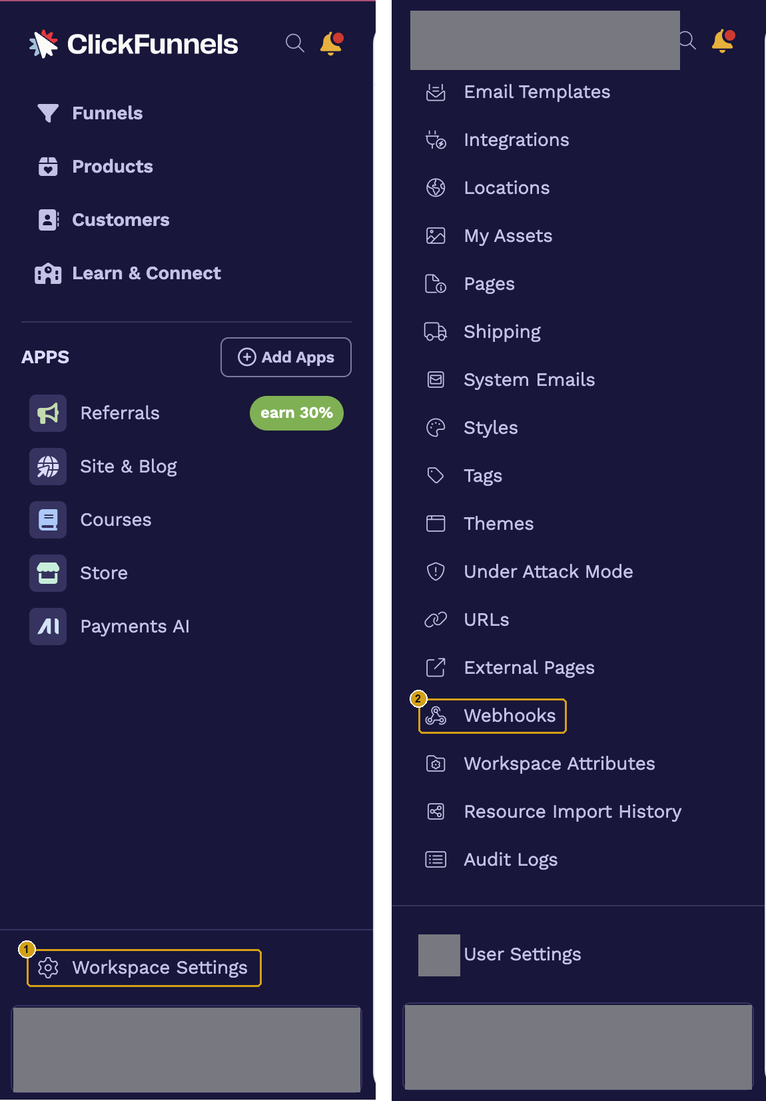
Step 1. Open Workspace Settings (1) at the bottom of the ClickFunnels sidebar.
Step 2. Open Webhooks (2). Scroll down the settings menu to find it.
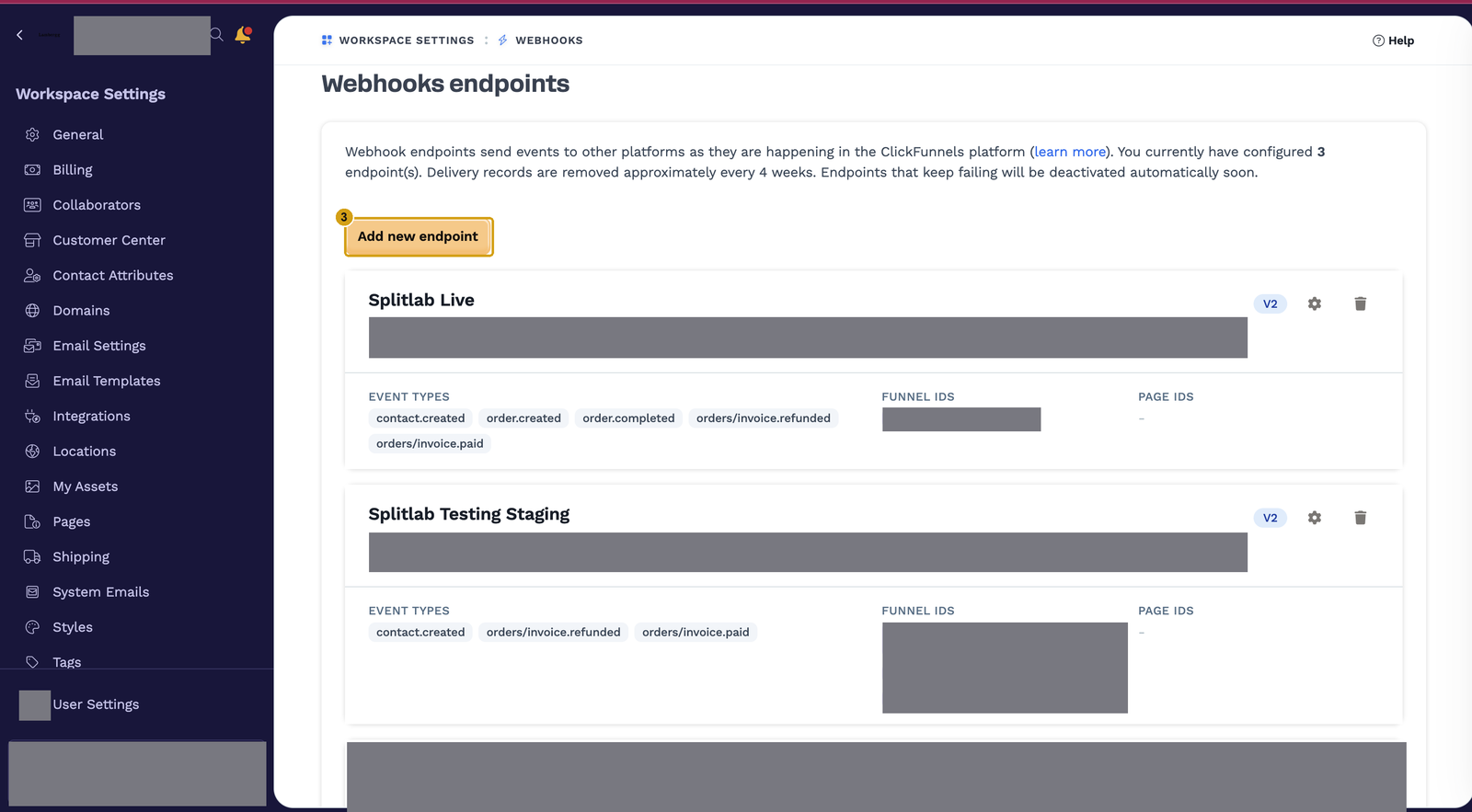
Step 3. Click Add new endpoint (3).
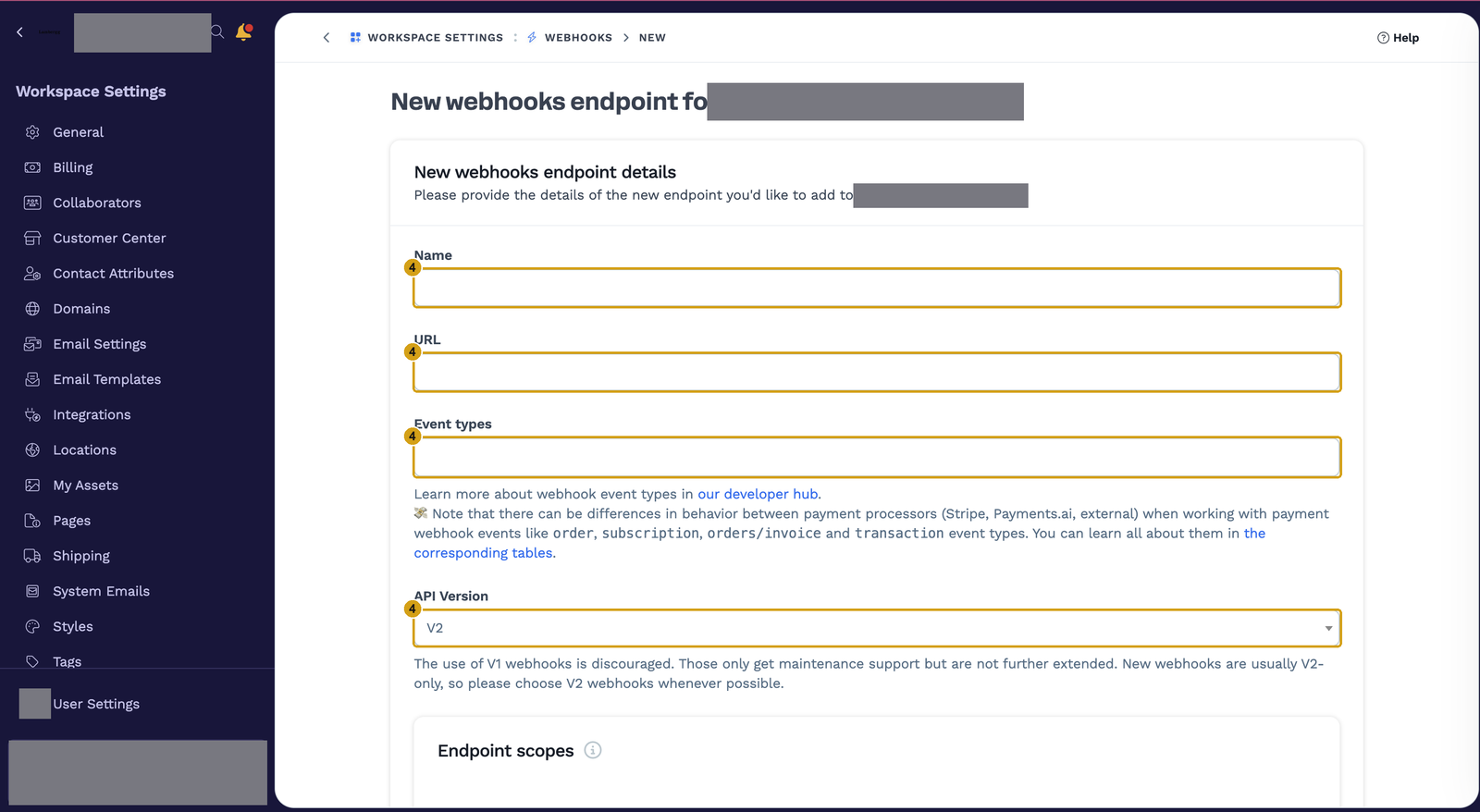
Step 4. Fill in the endpoint (4):
| Field | Value |
|---|---|
| Name | Anything you recognise, such as Splitlab. |
| URL | The webhook URL you copied from Splitlab. |
| Event types | The events the wizard's Events step lists, at least the required ones. See the event table. |
| API Version | V2 |
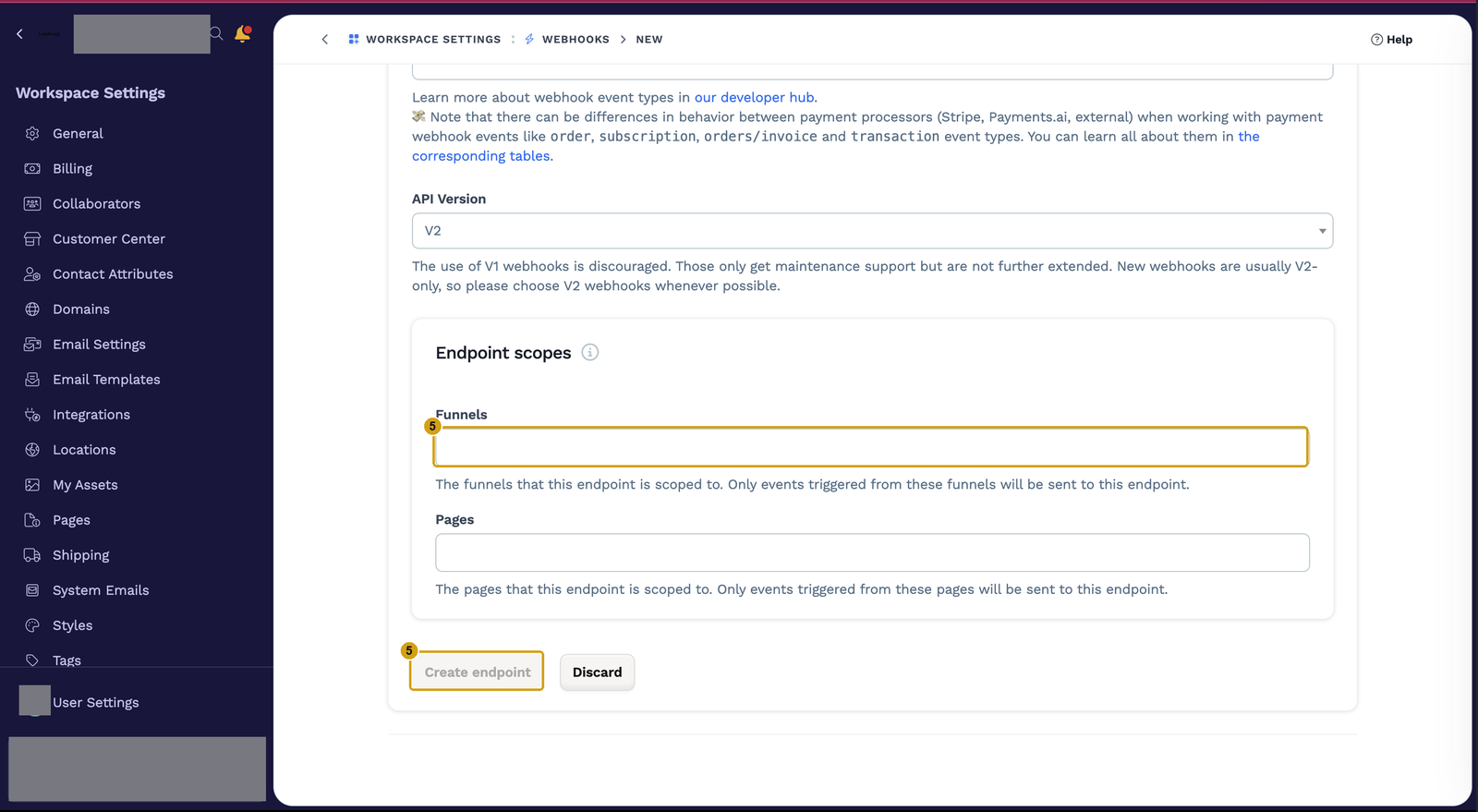
Step 5. Scope it to your funnel. Under Endpoint scopes → Funnels (5), select the funnel your A/B test runs on. ClickFunnels then sends only that funnel's events to Splitlab. Click Create endpoint (5).
3. Add the webhook secret to Splitlab
Step 6. Copy the secret. On the Webhooks page, click the name of the endpoint you just created. Its details page opens. Copy the Webhook Secret with the copy button (6).
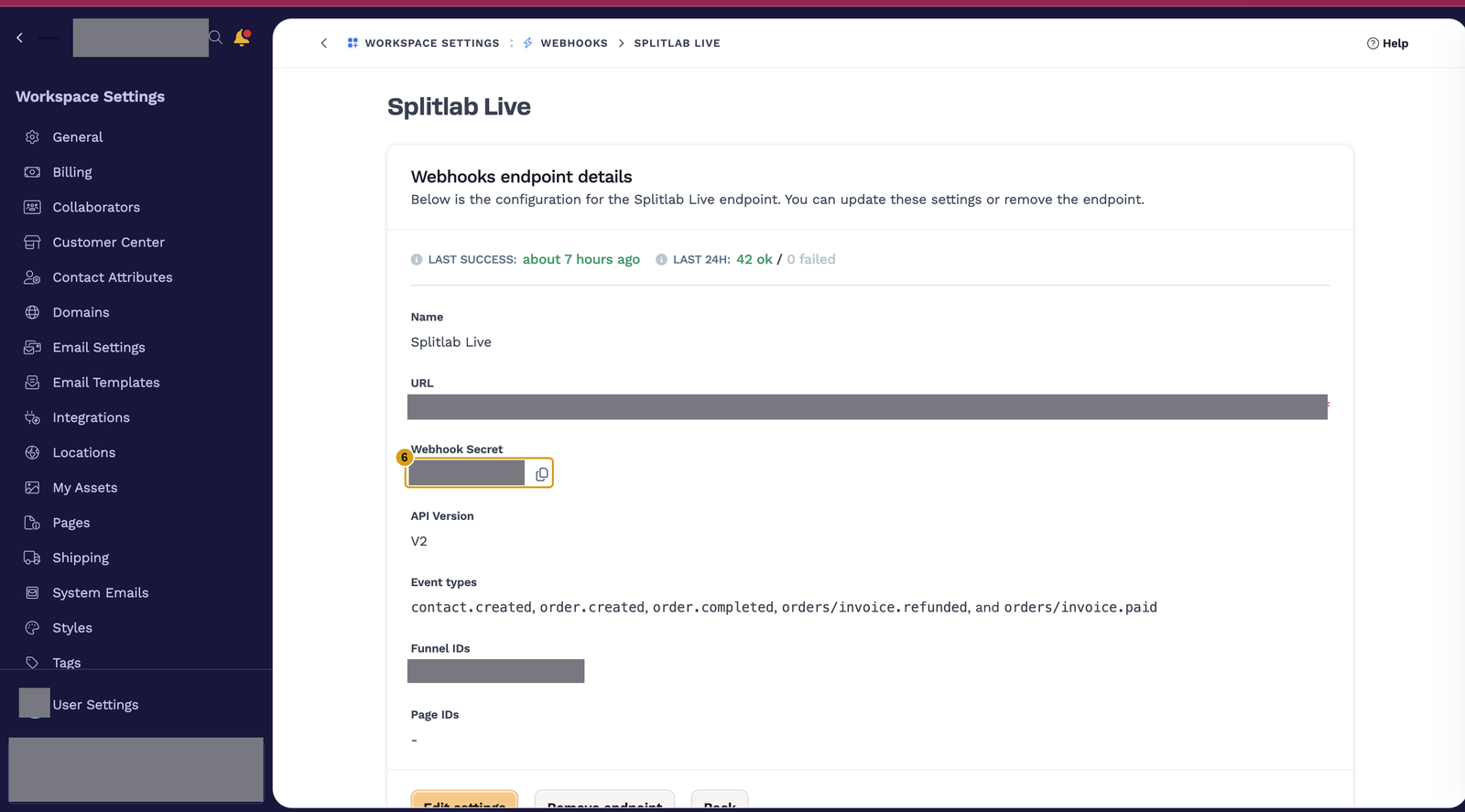
Back in the wizard, click I've added the URL, tick I've selected these events in ClickFunnels, and paste the secret into the Webhook secret step. Splitlab then rejects any delivery that is not signed with it. The step is optional: skipped, deliveries are accepted unsigned, and you can add the secret later with ⋮ → Edit Integration.
Treat the secret like a password
Paste it only into Splitlab. If it is ever exposed, remove the endpoint in ClickFunnels, create a new one, and paste the new secret into Splitlab.
4. Optional: add a ClickFunnels API token
The token lets Splitlab read your product catalog and fill in order details the webhook leaves out. Splitlab only reads with it, so a read-only token is all it needs.
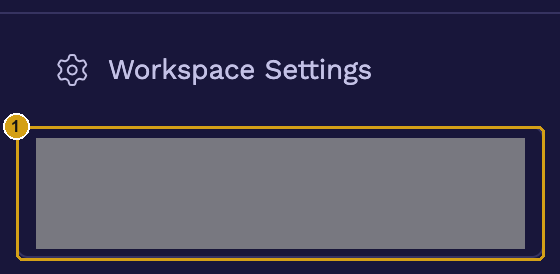
Step 1. Open the account menu. Click your workspace card at the bottom of the ClickFunnels sidebar (1).
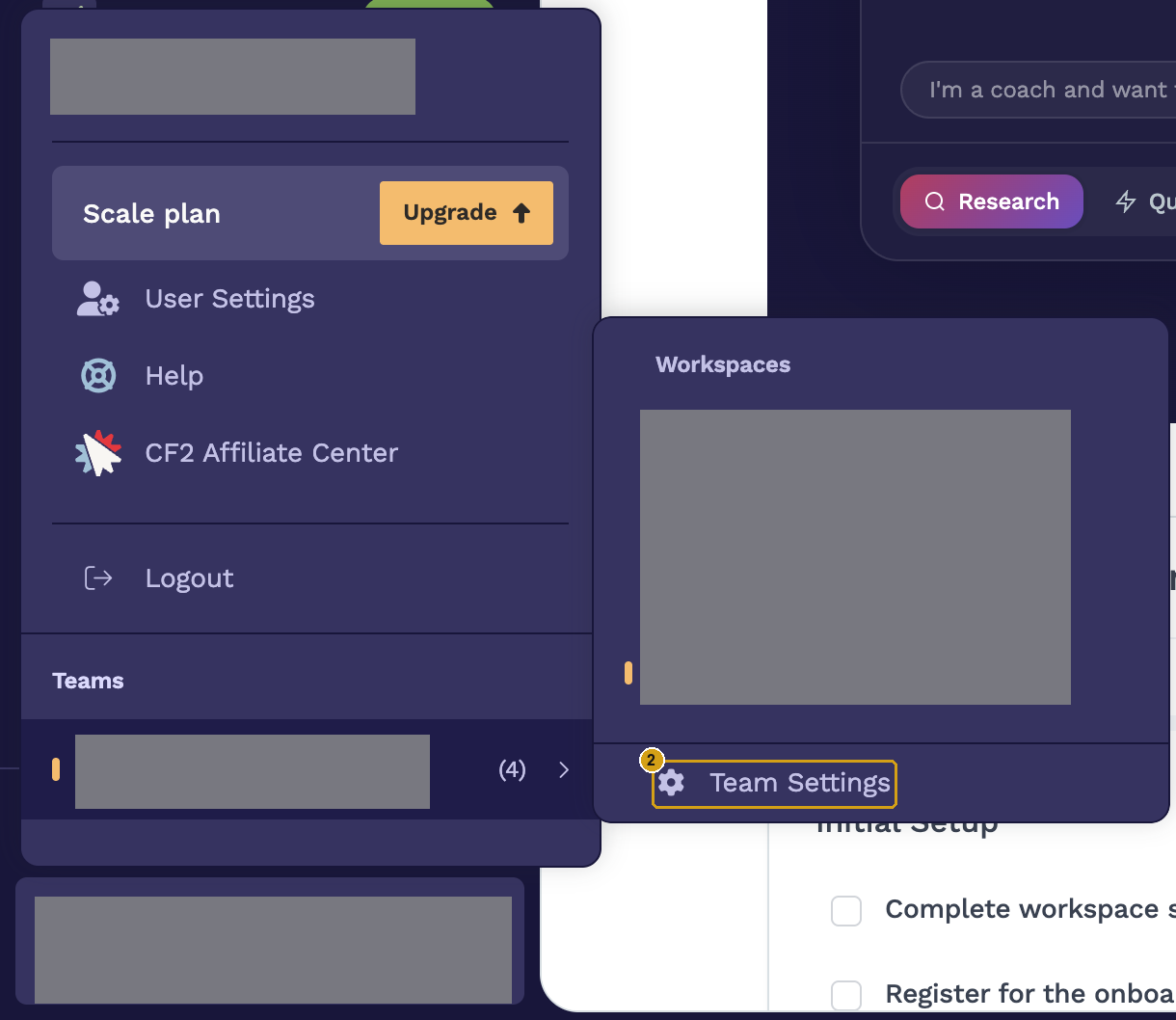
Step 2. Open Team Settings (2) from your team in the menu.
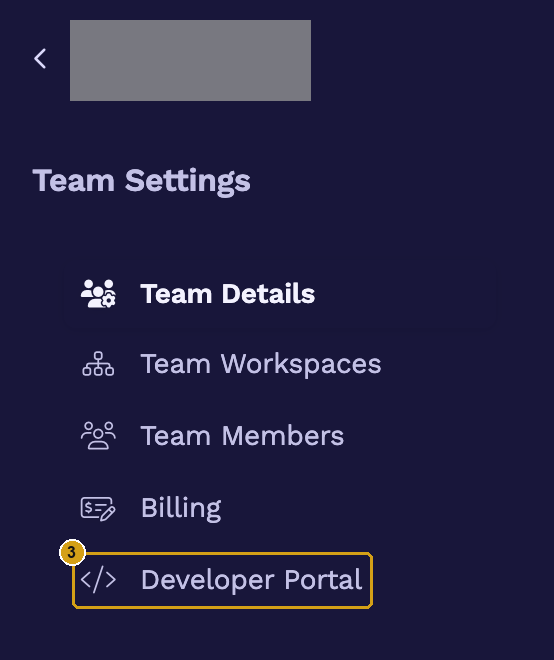
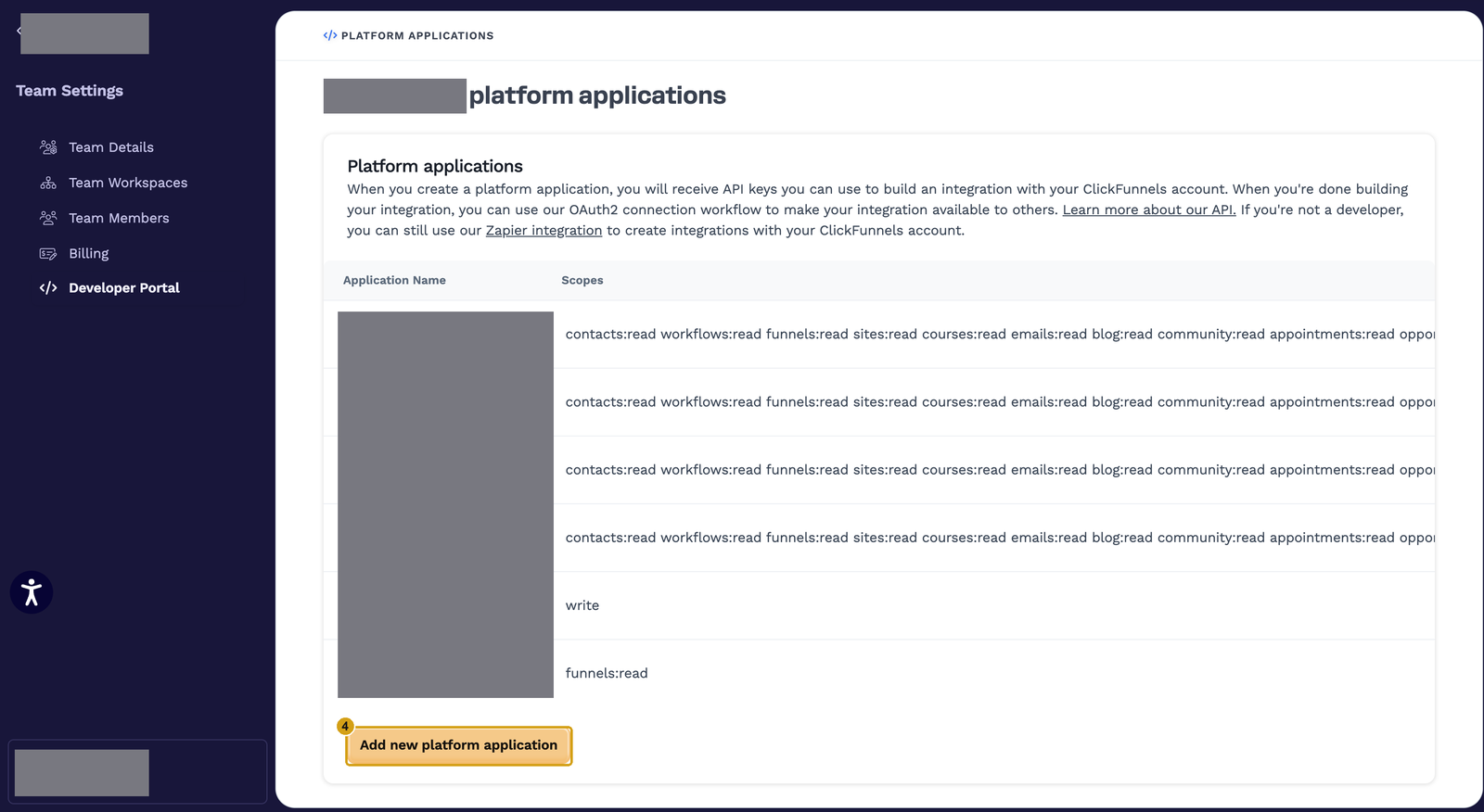
Step 3. Open Developer Portal (3).
Step 4. Click Add new platform application (4).
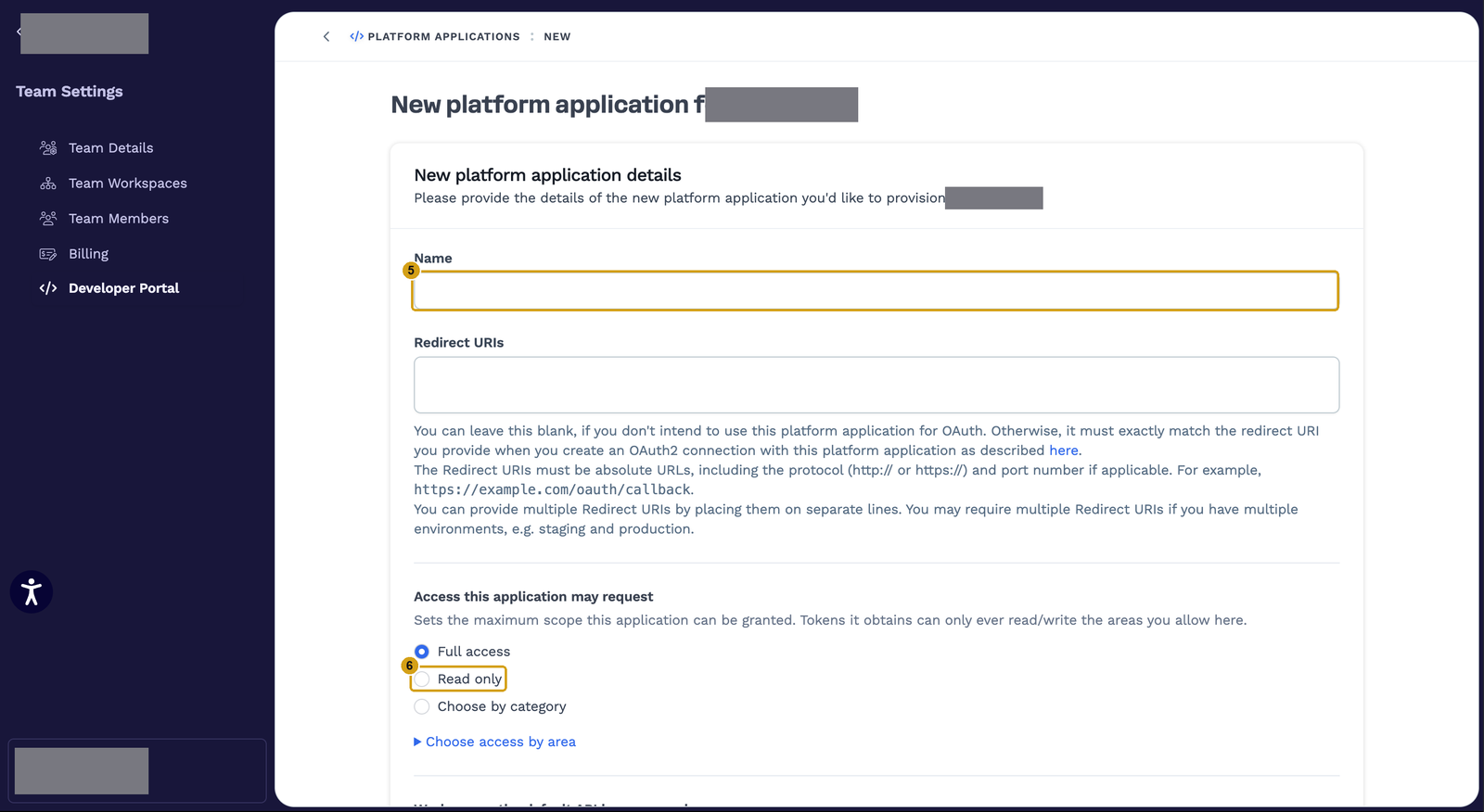
Step 5. Name the application (5), for example Splitlab. Leave Redirect URIs empty: they
are only for OAuth applications, and this one is not.
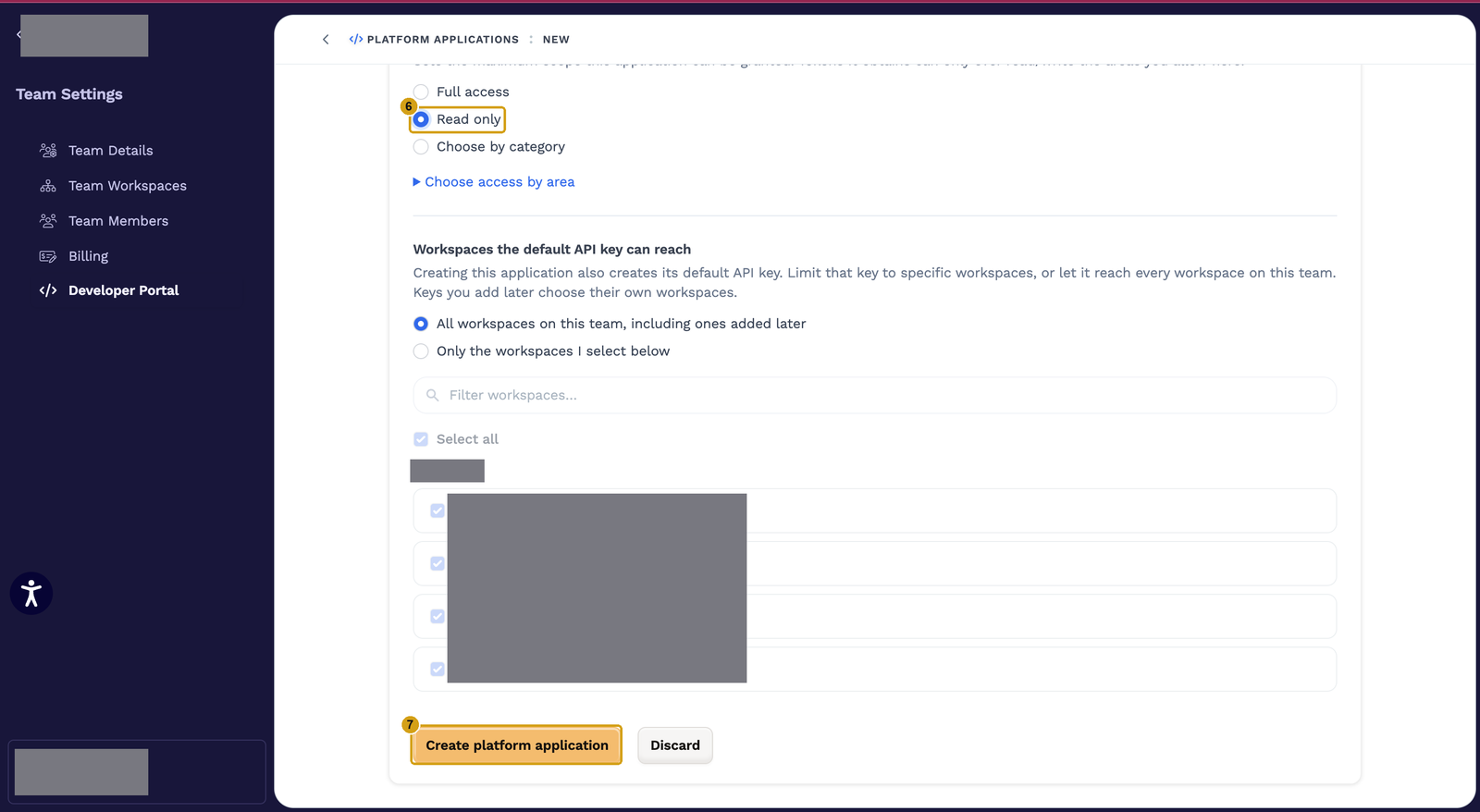
Step 6. Select Read only (6) under Access this application may request.
Step 7. Click Create platform application (7). Under Workspaces the default API key can reach, you can keep all workspaces or limit the key to the workspace whose funnel you test.
Step 8. Copy the API access token from the application ClickFunnels just created.
Paste it into the wizard's API token step, or skip that step and add it later with ⋮ → Edit Integration → ClickFunnels API token. Stored tokens are never shown again; leaving the field blank later keeps the saved one. The wizard's last step, Verify, lists deliveries as they arrive.
Keep the token private
Paste it only into Splitlab. If it is exposed, delete the platform application in ClickFunnels and create a new one.
What each event does
Subscribe to the required events at least. order.created and order.updated on their own
are not enough: they fire before a payment settles, so an endpoint with only those records no
revenue.
| Event type | In Splitlab | |
|---|---|---|
order.completed, orders/invoice.paid | Required | Record the sale and credit it to the variant the buyer saw. |
contact.created, contact.updated | Required | Create or update the lead, linked to the visitor through mvt_visitor_id. |
one-time-order.completed, one-time-order.invoice.paid | Recommended | One-time offers such as upsells. |
subscription.invoice.paid, subscription.first_payment_received | Recommended | Subscription payments. |
orders/invoice.refunded, one_time_order.refunded, orders/invoice.voided | Recommended | Reverse the revenue of a refunded or voided sale. |
Check it works
- Open the live funnel in a private window and submit the form with a new email.
- In Splitlab, open the integration row's ⋮ → View events. A
contact.createddelivery appears, and the contact is listed under Conversions → Leads. - Make a test purchase. An
orders/invoice.paiddelivery appears and the lead shows the revenue as Attributed.
ClickFunnels also shows the endpoint's Last success and Last 24h delivery counts on its details page.
Troubleshooting
| Symptom | Fix |
|---|---|
| No deliveries in View events | Check the endpoint URL matches the Splitlab row exactly, and that the funnel you tested is selected under Funnels. |
| Deliveries rejected for their signature | The secret in Splitlab does not match ClickFunnels. Copy it again from the endpoint's details page and paste it in Edit Integration. |
| Revenue shows as Unattributed | The form has no mvt_visitor_id field, or the snippet does not run on that page. Follow ClickFunnels 2.0 forms. |