Documentation
ClickFunnels Classic
Connect ClickFunnels Classic so its contacts and sales count toward your A/B tests. Classic webhooks belong to a single funnel: each funnel you track gets its own webhook, and they can all point at the same Splitlab URL.
Everything is scoped to a workspace
The webhook belongs to the Splitlab workspace that created it. Revenue it receives counts in that workspace only. No campaign needs to be picked: Splitlab finds the variant from the visitor.
Before you start
- The Splitlab snippet installed on the funnel.
- The hidden
mvt_visitor_idfield on the funnel's forms: ClickFunnels Classic forms. Without it, sales still arrive but show as Unattributed. - The Splitlab role that can manage integrations in the workspace.
1. Start the connect wizard in Splitlab
- In Splitlab, select the workspace, then open Integrations → ClickFunnels Classic and click Create. The Connect ClickFunnels Classic wizard opens.
- Name: give the connection a name you will recognise, such as the funnel it tracks. One connection can cover several funnels.
- Webhook URL: click Create webhook URL, then copy the URL it shows.
Keep the wizard open: its last step shows deliveries as they arrive.
2. Add the webhook in ClickFunnels
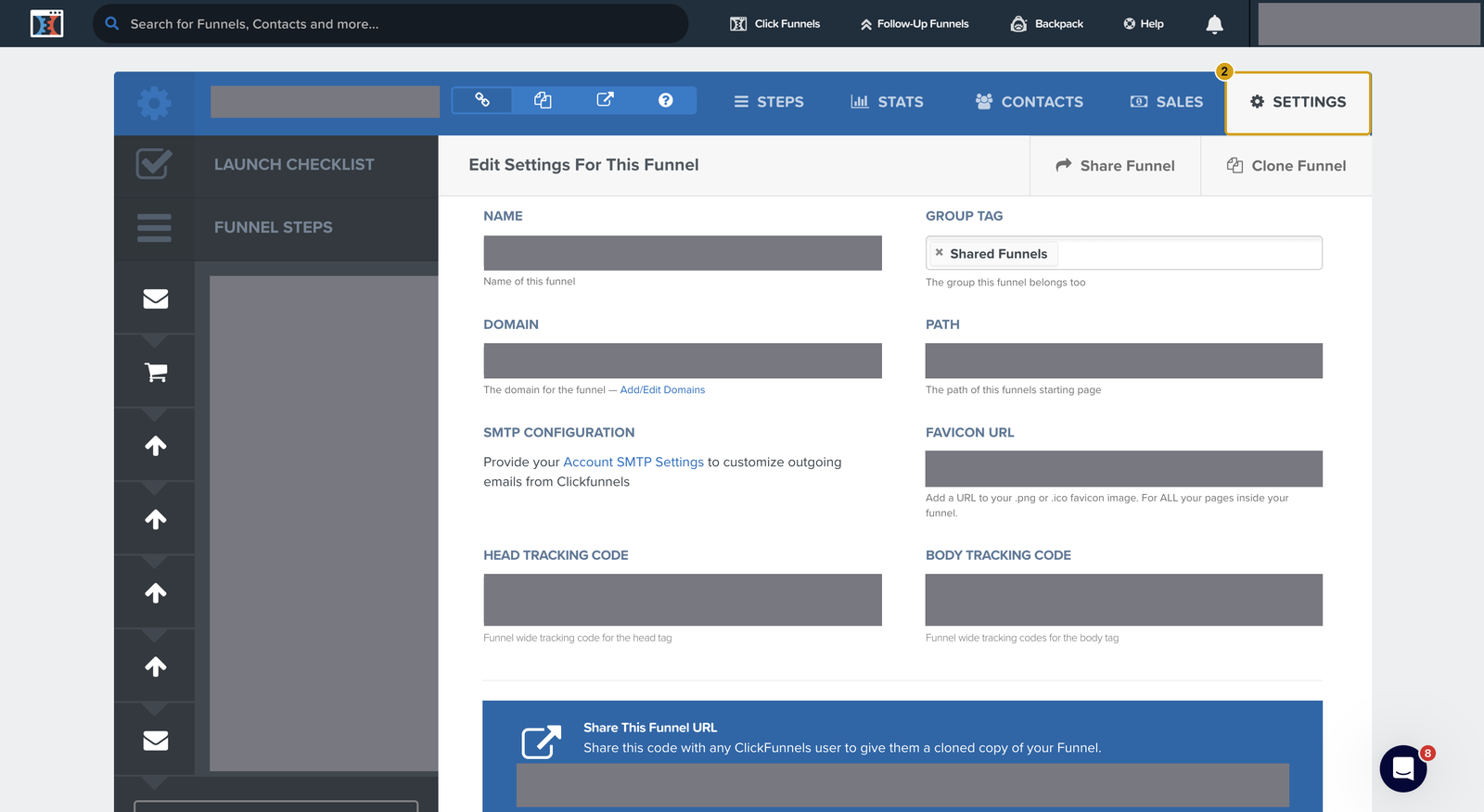
Step 1. Go to your funnel. In ClickFunnels Classic, open the funnel you want to track.
Step 2. Open its Settings (2).
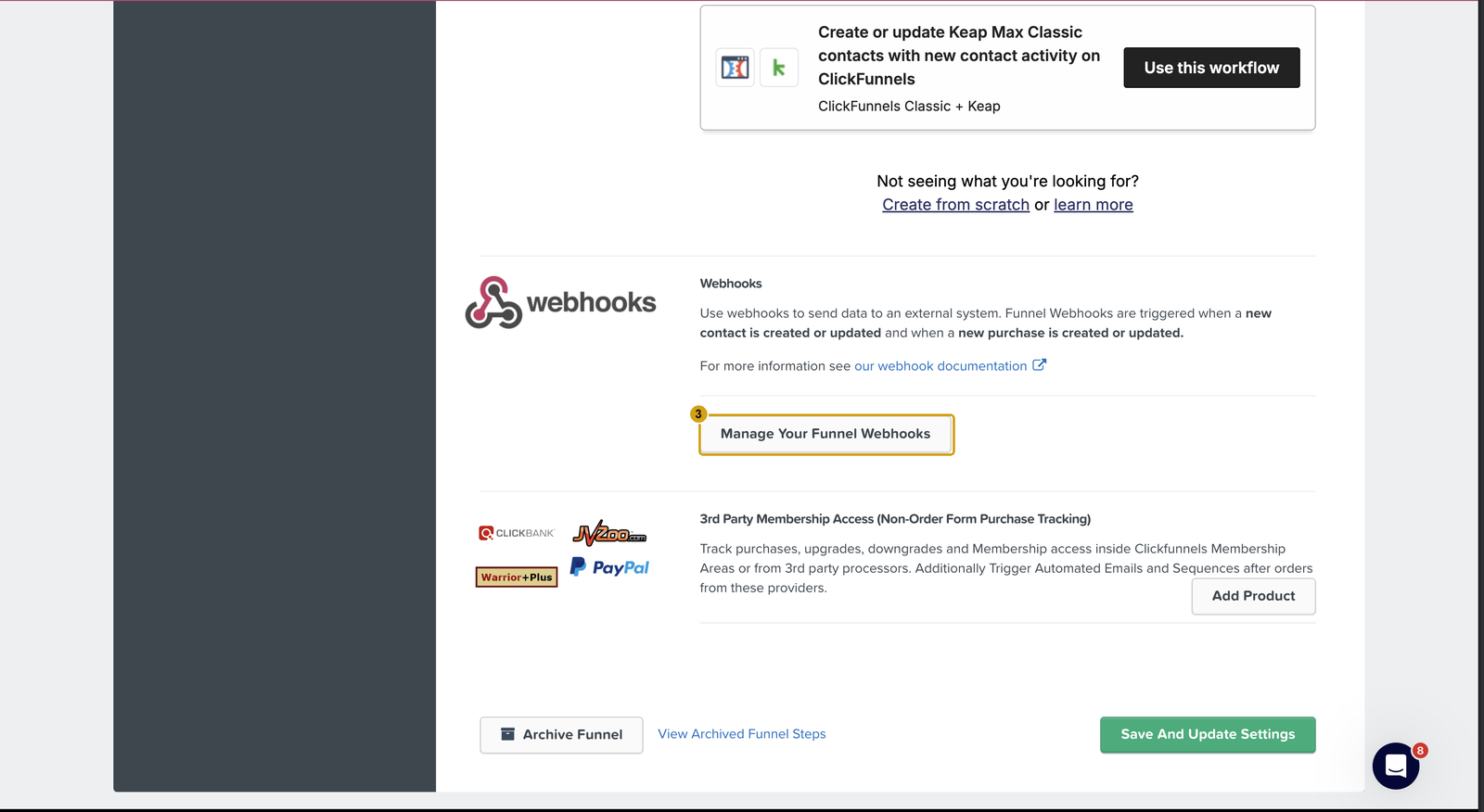
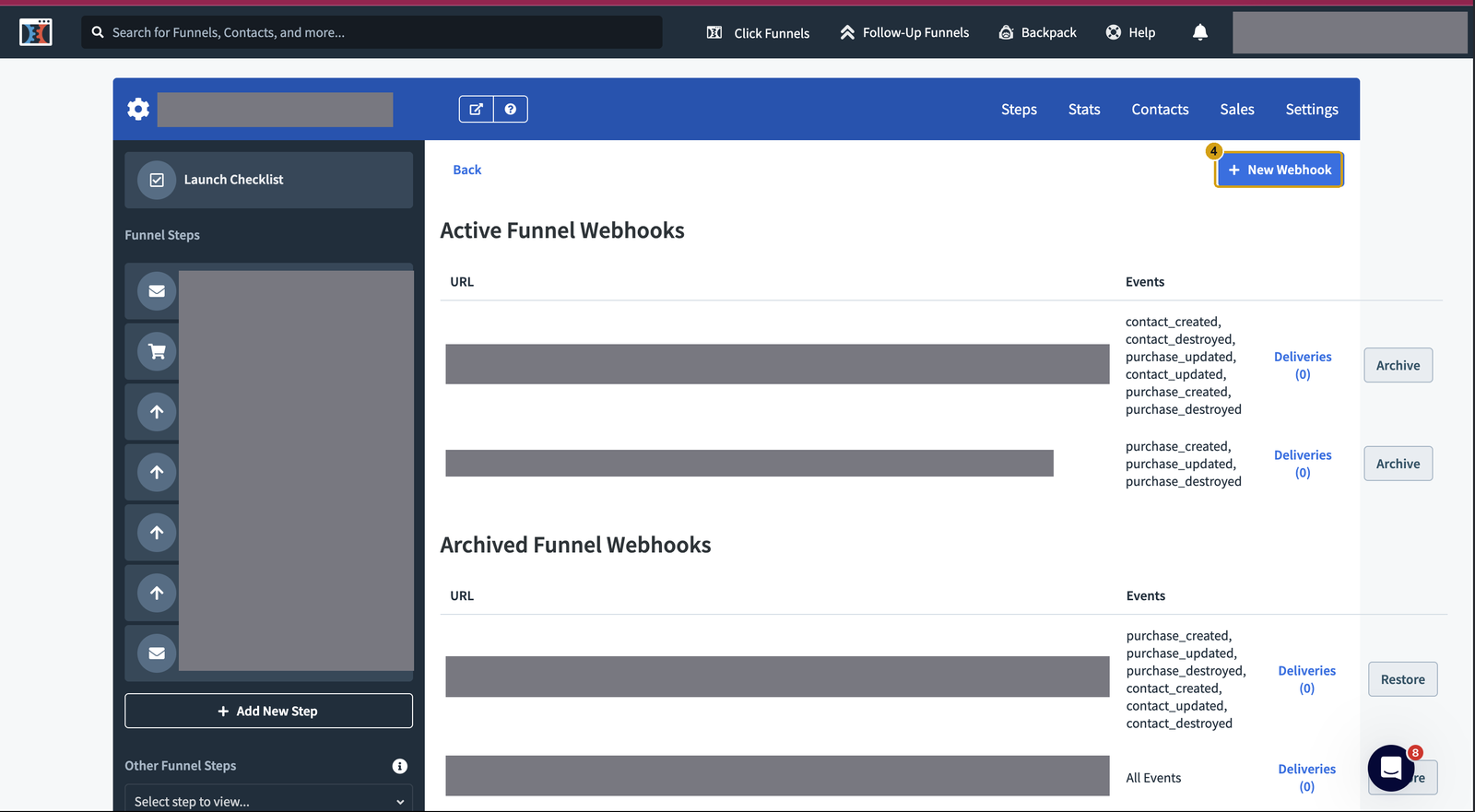
Step 3. Open the funnel's webhooks. Scroll down to Webhooks and click Manage Your Funnel Webhooks (3).
Step 4. Click New Webhook (4).
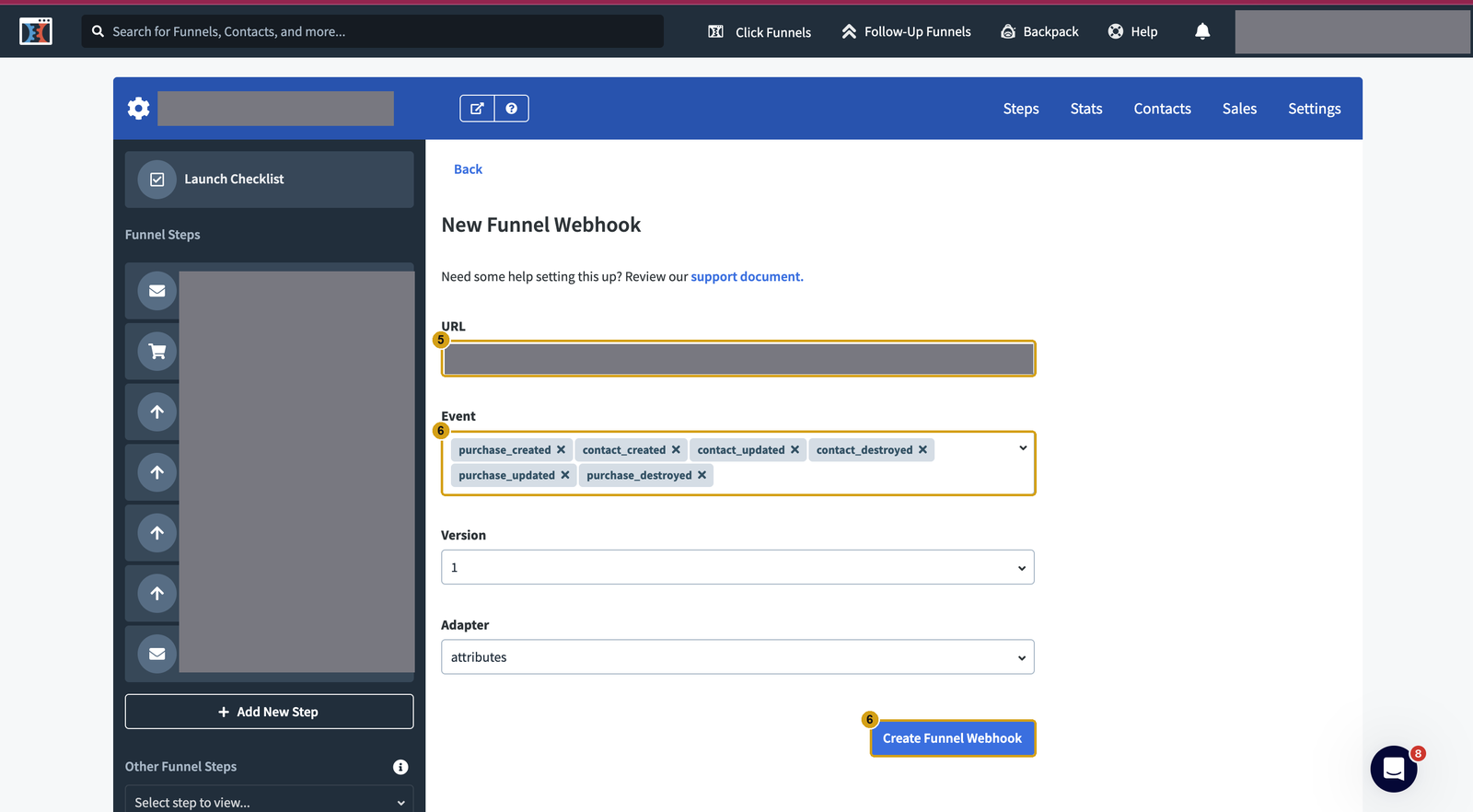
Step 5. Paste the URL you copied from Splitlab into URL (5).
Step 6. Select the events (6): purchase_created, purchase_updated, purchase_destroyed,
contact_created, contact_updated and contact_destroyed. Leave Version and Adapter on
their defaults, then click Create Funnel Webhook (6).
Repeat steps 1 to 6 in every funnel you want tracked. Each one can use the same Splitlab URL.
Back in the wizard, click I've added the URL and I've set the Event field in ClickFunnels.
No webhook secret in Classic
ClickFunnels Classic does not sign its webhooks, so there is no secret to copy. Keep the webhook URL private: it is what identifies your workspace.
What each event does
| Event | In Splitlab |
|---|---|
purchase_created | Records the purchase and its revenue against the variant the visitor saw. |
purchase_updated | Keeps a recorded purchase's amount and products up to date. |
purchase_destroyed | Reverses the purchase. This is how a refund reaches your reports. |
contact_created | Ties the buyer's email to the visitor who saw the test. |
contact_updated | Keeps that link accurate when the contact's details change. |
contact_destroyed | Drops the link when ClickFunnels deletes the contact. |
An event you leave out never reaches Splitlab.
Check it works
- Open the live funnel in a private window and submit the form with a new email.
- In the wizard's Verify step, or with ⋮ → View events on the integration row, a
contact_createddelivery appears. ClickFunnels also counts them under Deliveries on the funnel's webhook list. - Make a test purchase. A
purchase_createddelivery appears and the lead shows the revenue as Attributed.
Troubleshooting
| Symptom | Fix |
|---|---|
| No deliveries | Check the webhook URL matches the Splitlab one exactly, that the webhook is under Active Funnel Webhooks, and that it is on the funnel you tested. |
| Purchases missing, contacts arrive | purchase_created is not selected on that funnel's webhook. |
| Revenue shows as Unattributed | The form has no mvt_visitor_id field, or the snippet does not run on that page. Follow ClickFunnels Classic forms. |