

Documentation
GoHighLevel
Connect GoHighLevel so the revenue it records counts toward your A/B tests. When an invoice is paid in GoHighLevel, Splitlab credits the money to the test variant that visitor saw.
The setup has two parts, both done once per workspace:
| Part | What it gives Splitlab | Where you set it up |
|---|---|---|
| Connect (OAuth) | Read-only access to contacts, invoices, orders, opportunities and location details. Used to identify buyers. | Splitlab → Integrations → GoHighLevel |
| Revenue webhook | Each paid invoice, the moment it is paid. | A Splitlab webhook, called from a GoHighLevel workflow |
Everything is scoped to a workspace
A GoHighLevel connection belongs to the Splitlab workspace that made it. Connecting in one workspace does not connect any other, even in the same organization. The same GoHighLevel sub-account can be connected from several workspaces; each one runs Connect itself.
Before you start
- A GoHighLevel sub-account (GoHighLevel also calls it a location). Splitlab connects to a sub-account, not to the agency account.
- The Splitlab snippet installed on the GoHighLevel funnels and websites whose visitors you are testing.
- The Splitlab role that can manage integrations in the workspace.
1. Open your sub-account
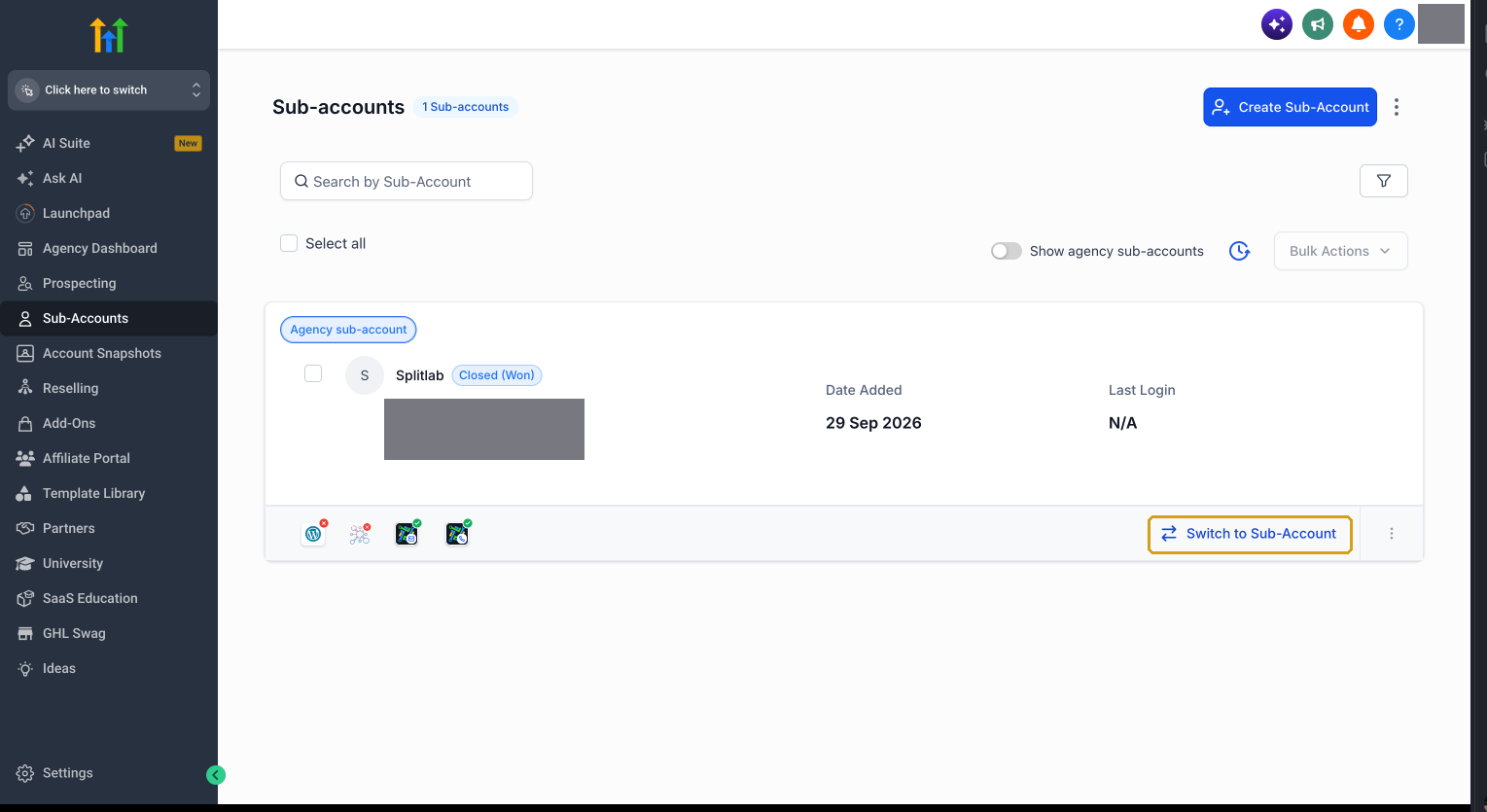
In GoHighLevel, open Sub-Accounts and click Switch to Sub-Account on the one you want to connect. Everything in GoHighLevel below happens inside that sub-account.
2. Add the mvt_visitor_id contact field
This field is how Splitlab knows which visitor paid. Without it, revenue still reaches the workspace, but it cannot be credited to the variant that visitor saw.
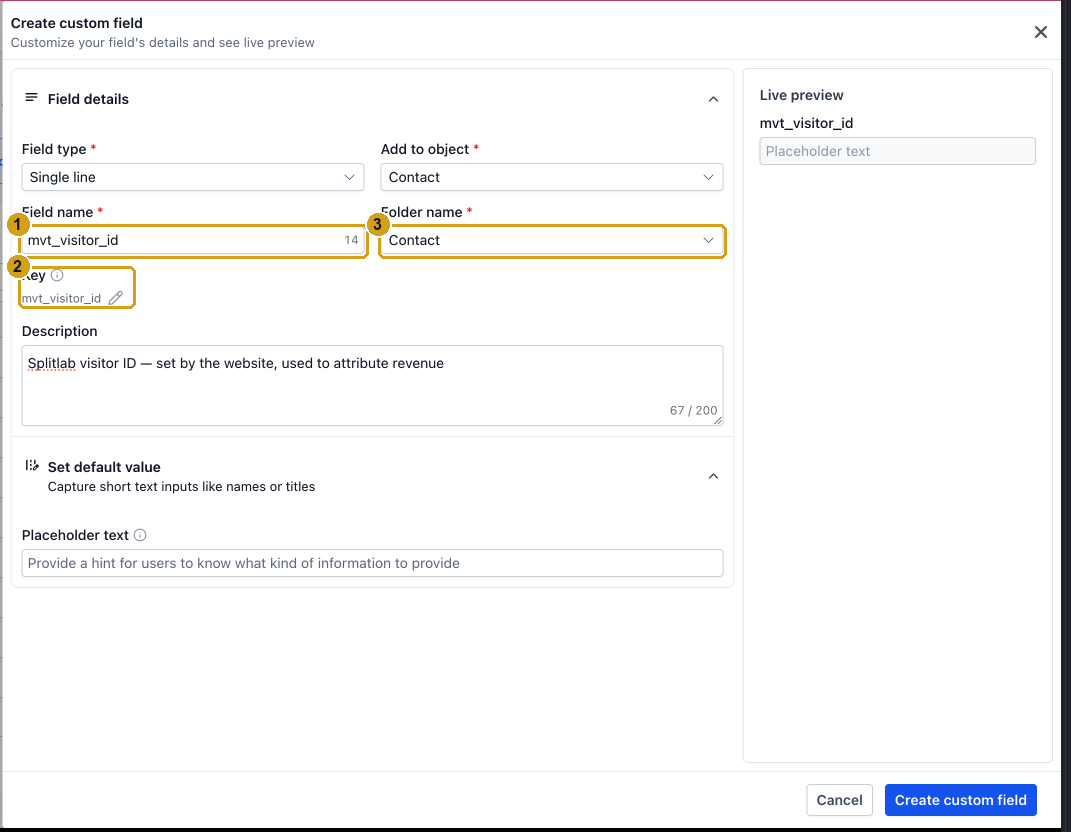
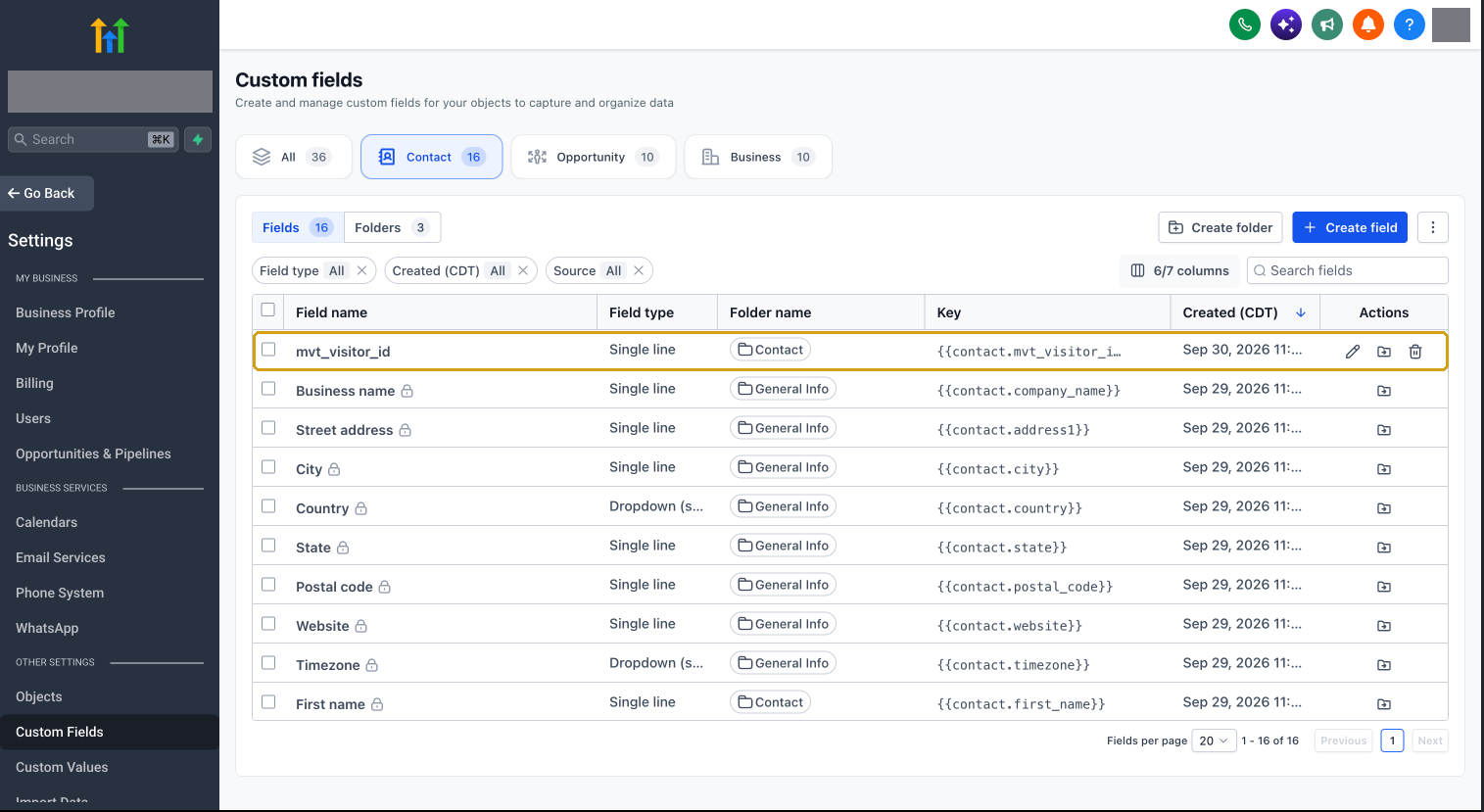
- Go to Settings → Custom Fields, open the Contact tab, and click Create field.
- Choose Single line, name it exactly
mvt_visitor_id, and put it in any contact folder. - Check that the key reads
contact.mvt_visitor_id, then click Create custom field.
3. Put the field on your form
Add mvt_visitor_id to your GoHighLevel forms as a hidden field, and install the Splitlab snippet
on the funnel. The snippet fills the field, so every contact the form creates carries the
visitor's ID. Follow GoHighLevel forms.
On a ClickFunnels page, follow ClickFunnels 2.0 forms or ClickFunnels Classic forms instead.
4. Connect GoHighLevel to your workspace
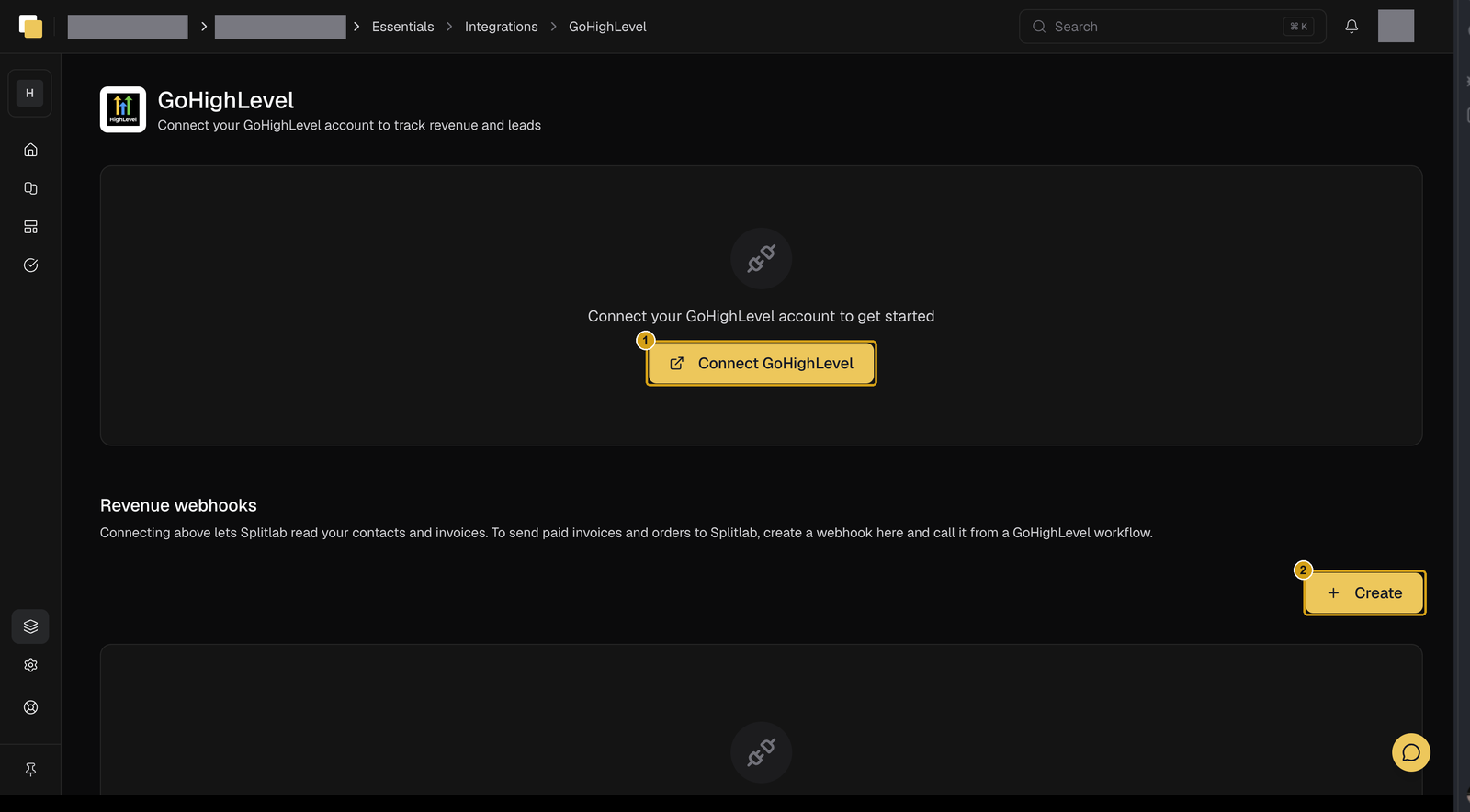
- In Splitlab, select the workspace, then open Integrations → GoHighLevel.
- Click Connect GoHighLevel (1). GoHighLevel opens in a new tab.
- Choose your sub-account and approve the read-only permissions.
You land back on Integrations with a "connected" message. The GoHighLevel card shows Connected for this workspace only.
5. Create a revenue webhook
On the same page, under Revenue webhooks, click Create (2), give the webhook a name, and submit. Splitlab shows three values once:
- Webhook URL
- Header name:
X-Splitlab-Webhook-Token - Token
Copy all three now. There is no campaign to choose: like ClickFunnels, the webhook belongs to the workspace, and Splitlab credits each order to the test the visitor was assigned to.
The token is shown only once
Splitlab never displays the token again. If you lose it, delete the webhook and create a new one, then update the workflow below with the new URL and token.
6. Build the GoHighLevel workflow
In GoHighLevel, go to Automation → Workflows → Create workflow → Start from Scratch.
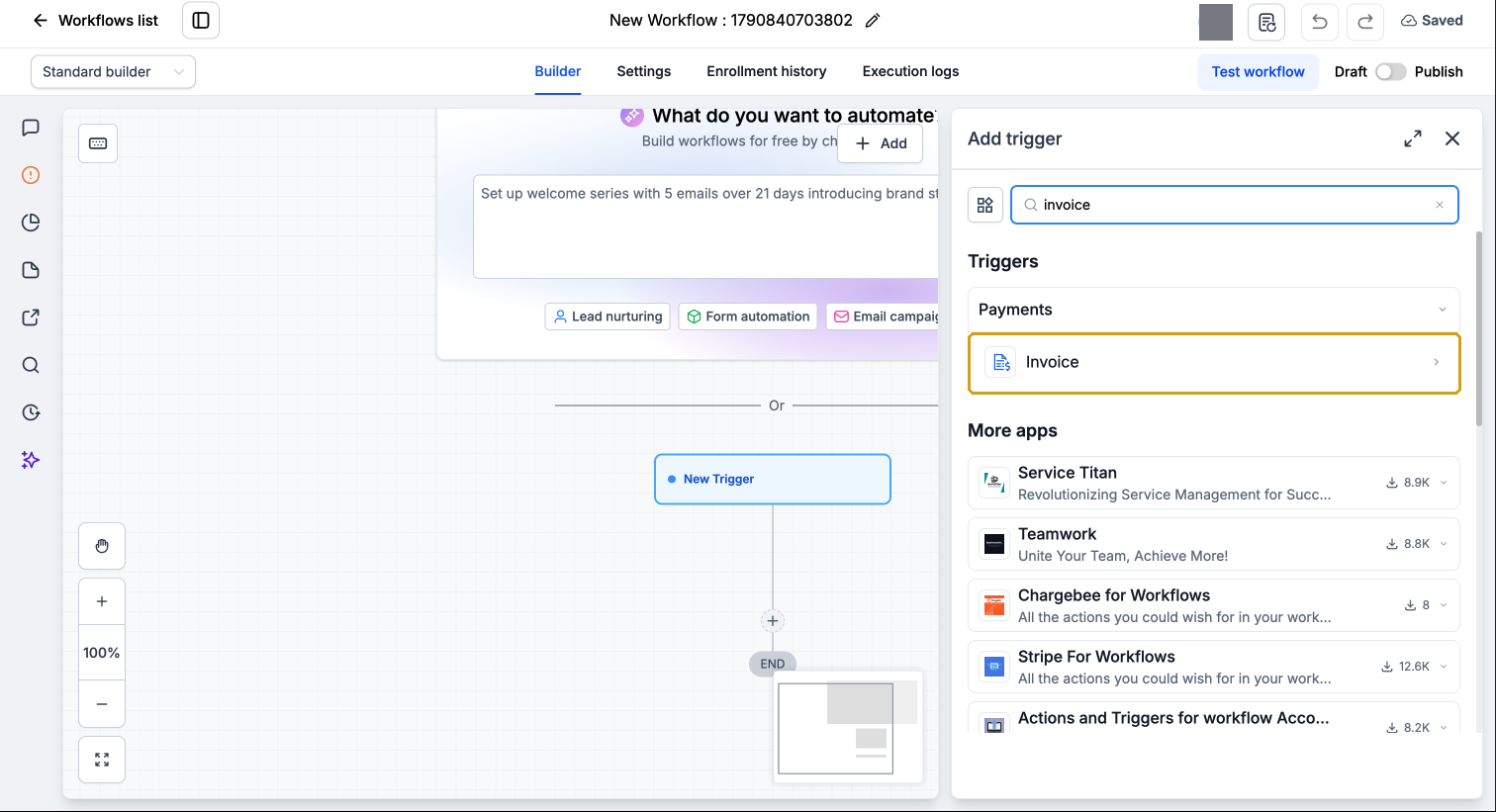
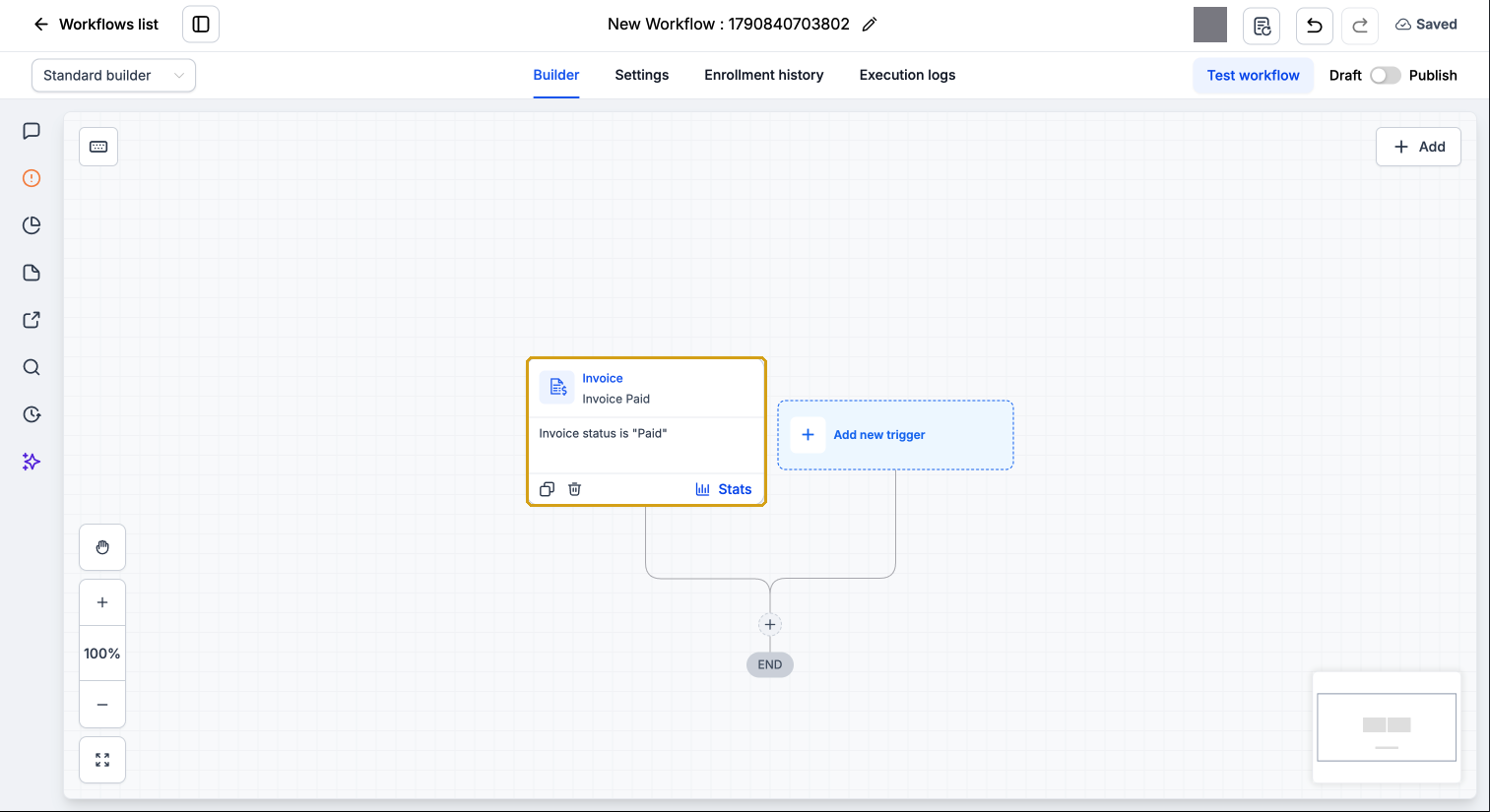
Trigger. Search for invoice, pick Invoice, set the filter Invoice status to
Paid, and save.
Filter on Paid, not Sent
The Invoice trigger also fires when an invoice is created or sent. Keep the filter on Paid, otherwise Splitlab records revenue that was never collected.
Action. Click + under the trigger and add Custom Webhook. The plain Webhook action cannot send headers, which the token needs.
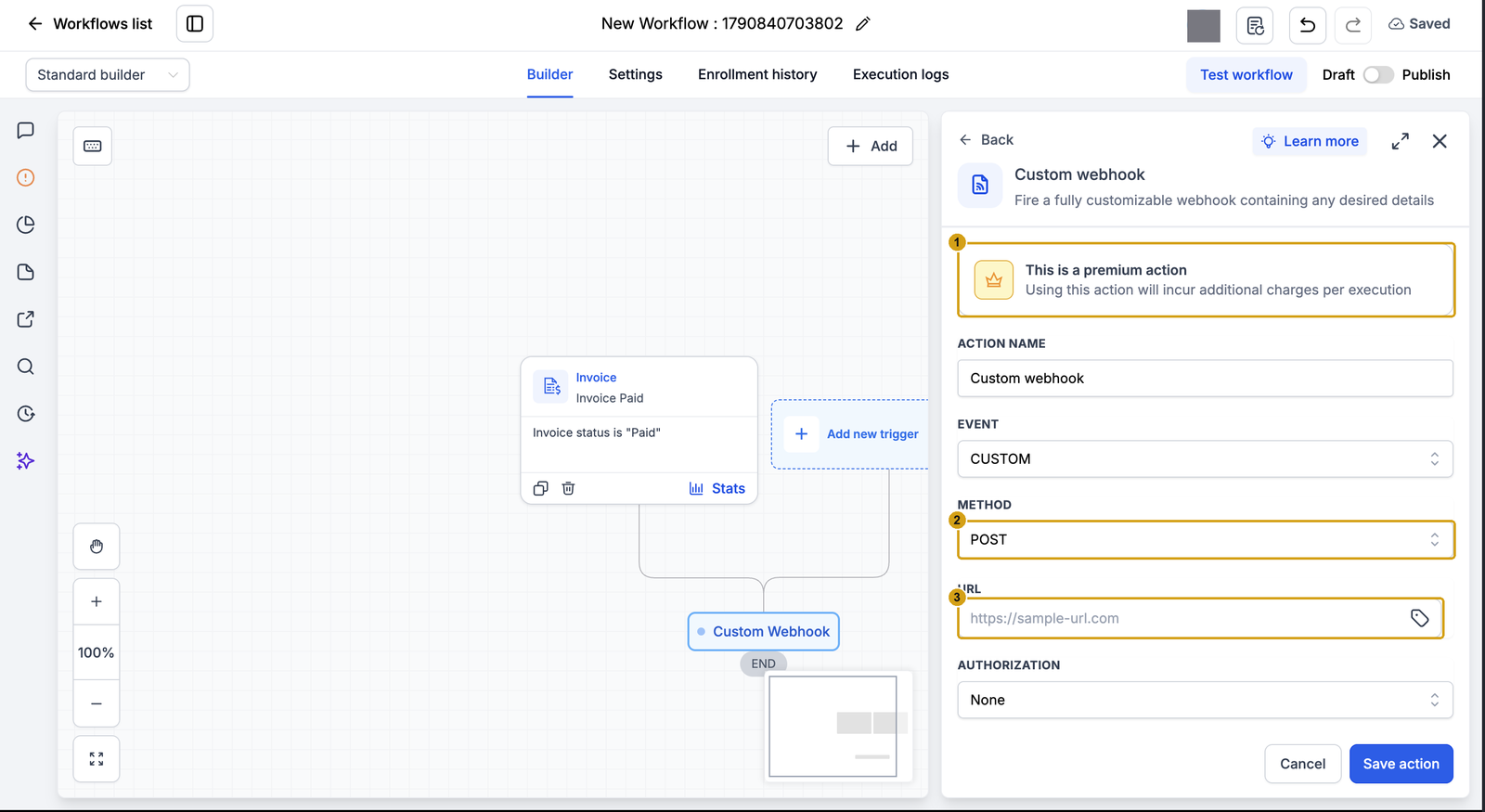
- Method:
POST - URL: the Webhook URL from step 5
- Authorization: None
- Headers → Add item: key
X-Splitlab-Webhook-Token, value the token - Content-type:
application/json
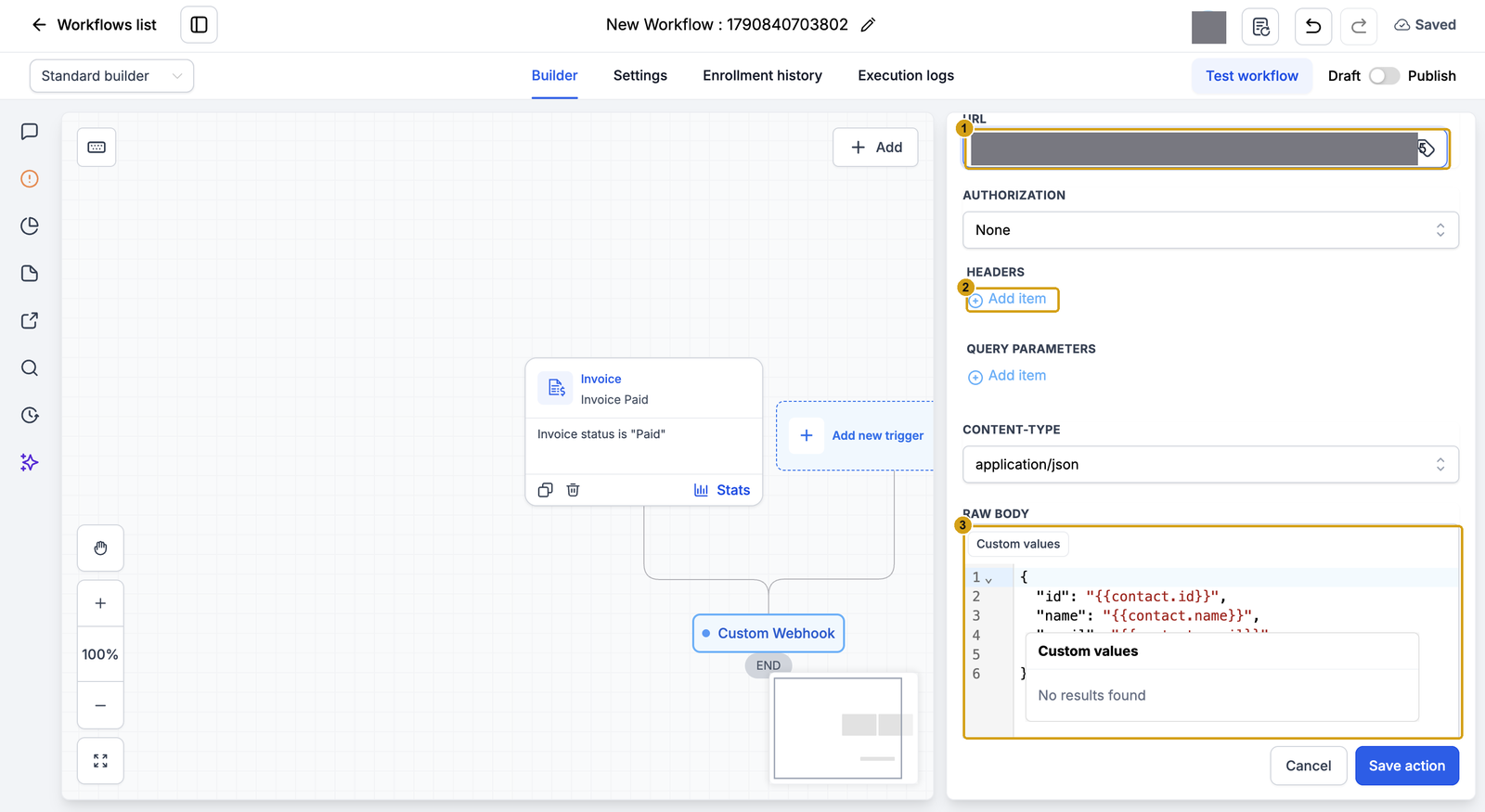
Replace the Raw body with:
{
  "type": "InvoicePaid",
  "locationId": "{{location.id}}",
  "contactId": "{{contact.id}}",
  "email": "{{contact.email}}",
  "first_name": "{{contact.first_name}}",
  "last_name": "{{contact.last_name}}",
  "phone": "{{contact.phone}}",
  "invoiceId": "{{invoice.number}}",
  "amount": "{{ invoice.amount_paid }}",
  "productName": "{{invoice.name}}",
  "customFields": { "mvt_visitor_id": "{{contact.mvt_visitor_id}}" }
}
Use invoice.amount_paid, not invoice.amount_due: once an invoice is paid, the amount due
is 0. productName is the label Splitlab shows in a lead's Purchases tab; use the invoice
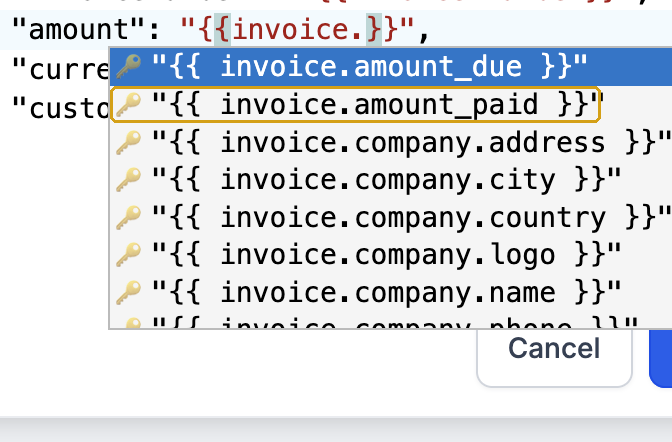
name, or any field that names what was sold. If a merge field is not accepted, type {{invoice.
and pick the field from the list.
Splitlab checks every payment with GoHighLevel
Before counting a paid invoice or order, Splitlab looks it up in your sub-account with the read-only connection. It counts the amount GoHighLevel shows as paid, and rejects a delivery for an invoice that does not exist or is not paid. If GoHighLevel cannot be reached, the payment is counted from the webhook as before.
Validation warnings on underscore fields
GoHighLevel's editor can flag {{ invoice.amount_paid }} as an invalid expression even though it
offers the field itself. Save the action anyway; the value is sent correctly.
Save the action, then switch the workflow from Draft to Publish.
Custom Webhook is a premium action
GoHighLevel charges a small fee for each run of a Custom Webhook action.
7. Optional: send new contacts
Revenue alone creates a lead only when someone pays. To see every new contact as a lead the moment GoHighLevel creates it, add a second workflow. It uses the same webhook URL and token.
Use a separate workflow
Do not add Contact Created as a second trigger on the invoice workflow. Both triggers would
share one raw body, so every new contact would arrive labelled InvoicePaid with no amount.
- Go to Automation → Workflows → Create Workflow → Start from scratch.
- Click Add New Trigger, choose Contact Created, and click Save trigger. Add a filter if only some contacts should be sent.
- Add a Custom Webhook action with the same Method, URL, header and content type as in step 6, and this raw body:
{
  "type": "ContactCreate",
  "locationId": "{{location.id}}",
  "contactId": "{{contact.id}}",
  "email": "{{contact.email}}",
  "first_name": "{{contact.first_name}}",
  "last_name": "{{contact.last_name}}",
  "phone": "{{contact.phone}}",
  "customFields": { "mvt_visitor_id": "{{contact.mvt_visitor_id}}" }
}- Save the action, then Publish the workflow.
Submit your form once with a new email. In Splitlab, the webhook's View events shows a
ContactCreate delivery marked contact_event, and the contact appears under Conversions →
Leads. A contact with no email is acknowledged and skipped.
8. Optional: count won opportunities
To count deals you close in a pipeline, not only paid invoices, add a third workflow. It uses the same webhook URL and token.
- Go to Automation → Workflows → Create Workflow → Start from scratch.
- Add the trigger Opportunity Status Changed. Under Filters, choose Moved to status → Won, then Save trigger.
- Add a Custom Webhook action with the same Method, URL, header and content type as in step 6, and this raw body:
{
  "type": "OpportunityWon",
  "locationId": "{{location.id}}",
  "opportunityId": "{{opportunity.id}}",
  "contactId": "{{contact.id}}",
  "email": "{{contact.email}}",
  "customFields": { "mvt_visitor_id": "{{contact.mvt_visitor_id}}" }
}
The deal's value is not sent: Splitlab reads it from GoHighLevel when it checks the opportunity.
- Save the action, then Publish the workflow.
Splitlab looks the opportunity up in GoHighLevel and counts it only if GoHighLevel shows it as won, using GoHighLevel's own value. Each opportunity counts once.
Invoices and won deals are counted separately
If you also invoice the same deal, both the won opportunity and the paid invoice count as revenue. Turn on only the workflows that match how you record a sale.
9. Test it
- In GoHighLevel, create an invoice for a test contact and send it.
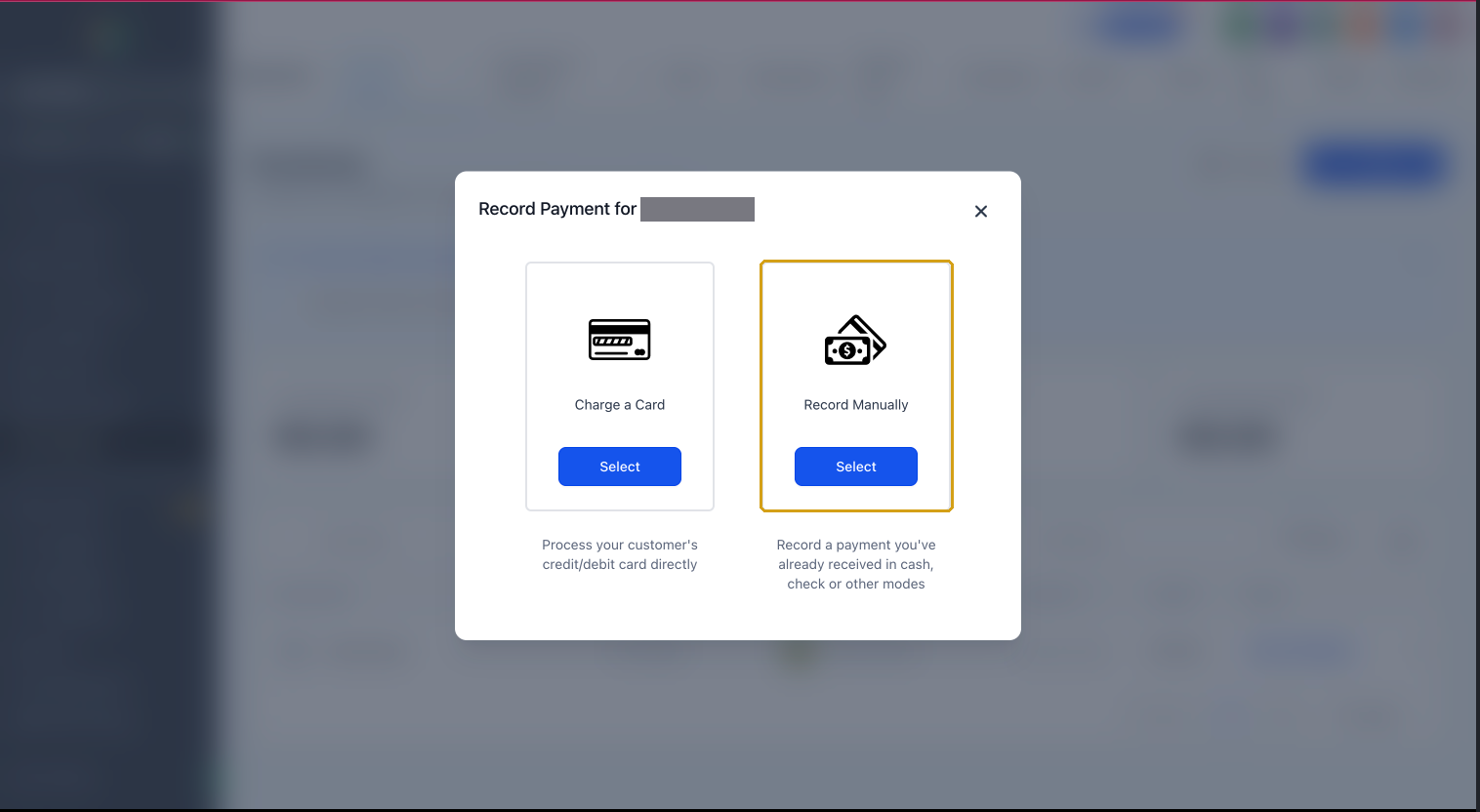
- Open the invoice, choose Record Payment → Record Manually, and record the full amount. No payment gateway is needed for this test.
- In Splitlab, open Integrations → GoHighLevel, then on the webhook row choose ⋮ → View events. The paid invoice appears with its amount.
A contact that never visited your site through the Splitlab snippet is recorded as workspace-level revenue. A contact that did is credited to the variant they saw.
Payload reference
Splitlab reads these keys from the top level of the webhook body:
| Key | Required | Notes |
|---|---|---|
type | Yes | InvoicePaid (or OrderPaid) for revenue, OpportunityWon for a won deal, ContactCreate for a new contact. Without it the delivery is acknowledged and ignored. |
amount | Yes | A plain number such as 10. total is also accepted. |
contactId | Yes, unless mvt_visitor_id is set | Identifies the buyer. |
opportunityId | For OpportunityWon | Identifies the deal, so Splitlab can confirm it is won, read its value, and count it once. |
invoiceId | Recommended | Deduplicates retries, and is how Splitlab finds the invoice in GoHighLevel to confirm it is paid. The invoice number ({{invoice.number}}) or the invoice ID both work. |
email | Recommended | Helps match the buyer to an earlier lead. |
first_name, last_name, phone | Recommended | Shown on the lead. firstName, lastName and phoneNumber also work. Empty or unrendered values are ignored. |
productName | Recommended | Shown as the product on the lead's purchases. Without it the purchase is labelled purchase. |
currency | No | Defaults to USD. |
customFields.mvt_visitor_id | Recommended | Links the payment to the visitor and their variant. An empty value is ignored. |
Send "type": "InvoiceVoid" or "InvoiceDelete" from a second workflow to reverse revenue for a
voided or deleted invoice.
Troubleshooting
| Symptom | Cause and fix |
|---|---|
| "Failed to connect GoHighLevel" after approving | Connect again from the same browser tab. If it repeats, contact support with the time you tried. |
| Connected in one workspace but not another | Expected: connections are per workspace. Run Connect in each workspace. |
| No events under View events | Check the workflow is published, the trigger filter is Paid, and the URL and token header match the webhook exactly. |
| Event received but no revenue | type or amount is missing or not a number. Check the raw body against the reference above. |
| Revenue shows as Unattributed | The buyer never visited a page running the Splitlab snippet before paying, or the contact has no mvt_visitor_id. Check the form setup: the Query Key, the snippet in the funnel's Head tracking code, and cookie consent. Revenue is still counted for the workspace. |
| Event marked rejected_by_ghl | GoHighLevel does not show that invoice or order as paid, so nothing was counted. The reason is shown with the event: invoice_not_found means the invoiceId sent does not match an invoice in this sub-account; invoice_not_paid means it is not paid yet; opportunity_not_won means the deal is not marked won. |
Product shows as purchase | The webhook body has no productName. Add it (see the raw body above). |
| Deliveries rejected after recreating the webhook | Each webhook has its own URL and token. Update both in the workflow. |
Disconnecting
Disconnect on the GoHighLevel page removes the connection for that workspace only. Other workspaces connected to the same sub-account keep working. To stop revenue deliveries, also delete the revenue webhook or unpublish the GoHighLevel workflow.